0

Understanding roVideoPlayer.SetKeyingValue

Hi,

I have some content that was created in another digital signage product which I'm trying to figure out if I can move to a BrightSign player.  I was excited to hear that the BrightSign XD and 4K players support chroma/luma keying because some of my content that I'm moving over have videos that contain an alpha channel. I was hoping to see if I could simply replace the alpha channel with a color that could be keyed on so I get the same effect on a BrightSign but I'm having some troubles understanding the documentation arround roVideoPlayer.SetKeyingValue. I was able to write a simple autorun script which will play my videos and apply a mask by using the SetKeyingValue method. I know it is obviously applying a mask because pixels are getting turned off but I don't understand well enough what the luma/cr/cb values need to be set to remove the right pixels for the effect I want.

Is there a straight forward way to just remove a certain color (like green for instance)? Is there any guidance that could help figure out what these values should be set to? I searched the internet for some help but nothing really was helpful.

Jesse

7 comments

  • 1
    Avatar
    Lyndon

    I forwarded your question to our senior video developer. I'll have an answer soon. 

  • 0
    Avatar
    Mario Brauer

    Hej Jesse and Brughtsign Support

    THis feature sounds interesting but i dont have exoerience programming custom scripts. I only use the brightauthor software until now. Could you provide a simple example script that keys green from an live hdmi input? and reveals a jpg og mp4 file "beneath" it


    Help much appriciated

  • 0
    Avatar
    Mario Brauer
  • 0
    Avatar
    Monica Knutson

    Lyndon - did you ever get an answer to this question?   We too want to use a chroma channel knockout on a project.   How do we determine the colors that are sent to the SetKeyingValue array?  I looked at the script that Mario linked above and can see that they are feeding it a HEX value -- but how is this value converted from RGB or HSV or HEX to the YCrCb?

    The script is doing some math to convert the array from HEX to integers to feed the function.  The math on the "GetChromaLumaColor" function converts pieces of the string (using the mid function) and then taking each of the three parts of the HEX string and adding them all together:

    (b0%*256*256) + (b1*256) + b2%

          the mask  + the high + the low = results in an integer

    The script does this little calculation for each: Y, Cr, Cb

    Still confused... is there a simple calculation or process to just pick one color -- RGB (2, 59, 86) -- and make it work?  

    How does one figure out the ranges of what is high and what is low?  Is there a factor of some sort?

    Gah!

    Any help from the community is appreciated!

    Cheers,
    Monica

  • 0
    Avatar
    salvador Rooijmans

    HELP!! can somebody help me. I can not seem to find the string for RGB Blue(#0000FF). :(

    I searched through the whole internet , tried some calculations I just do nit get how I get from these values to the separate hex values for lime Cb and Cr.

    Is there anyone that could help me with this. it would be greatly appreciated .


    thanks

  • 0
    Avatar
    Lyndon

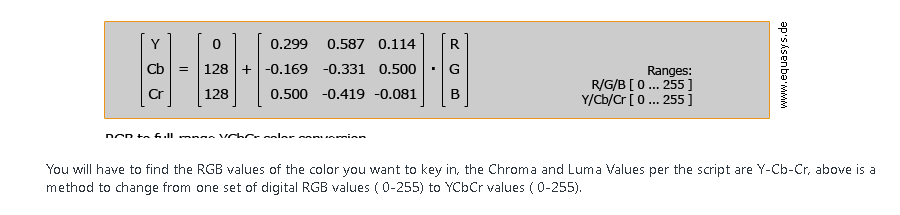
    Is this helpful? It looks to cover the topic. The image seems to cover the conversion of color values. 

    Additonally, below is some comments on another customer asking about this but it does provide some more details. 


    The chroma key settings have a mask, a minimum and maximum value. The mask is really only useful for 'special effects', the minimum and maximum are the important values. Each pixel of every frame is checked to see if it is between the minimum and maximum values. If it is, then the pixel is set to fully transparent. If it is outside the range, then the pixel is fully opaque.


    This puts some restrictions on content. It's not possbile to have a gradual fade of the transparency using chroma-key, just a hard edge where the video goes from opaque to transparent. CGI animations with Green holes often have anti-aliasing which will result in a fade of green around the holes. The Disney video has this.


    The majority of the green holes can be chroma-keyed out using:


    v.SetKeyingValue({cr:&hff2000, cb:&hff3000})

    which is a range of 0-32 for Cr and 0-48 for Cb. However, this leaves a green halo around the holes where the green is less green than the rest of the hole. That's because when it was authored the green has been blended in to the 'picture frame' to give a smoother look. The chroma-keying can't do smooth transitions, and so this means that a larger range is required to cover the greens at the edge of the holes.

    v.SetKeyingValue({cr:&hff7000, cb:&hff7000})


    Looks much better, but it now covering a much larger range of colours.


    Much worse is the anti-aliasing around the fireworks. It's not possible to pick out the fireworks from the background as due to the rendering everything is a shade of green. The worst segment is where the whole hole fades up to blue. The problem with that is that the transparency can't do fades, so instead what you see is transparency followed by a sudden jump to a 'fading green to blue' when the value in the hole gets outside of the chroma key range.


    My recommendations are:
    Be very careful when authoring not to anti-alias any pixels which you want to be transparent. As a result there won't be smooth edges, but you well get much better chroma-keying. Doing this means that you should be able to target a single color for transparency rather than a range which in turn should give you more flexibility with the rest of the overlay. However, this still has a problem as when videos are compressed, the chroma is sub-sampled and so there will still be problems at the edges of the holes where the chroma will end up as an intermediate value between green and frame colour.


    That's why it is much better to use luma keying. Luma-keying gives twice the resolution compared to chroma-keying as every pixel has it's own luma value. With the same care wrt anti-aliasing it should be possible to use the blackest black for the luma-key holes, and all other blacks for the frame and fireworks.

  • 0
    Avatar
    salvador Rooijmans

    Hi Lyndon,


    Thanks for your reply.

    I found this formula before and tried to use it. But it comes back with values that I do not seem te get converted to hex te right way.


    I got y=29, Cb=63 and Cr=-18. Just do not know how top get it to hex of sort.

Please sign in to leave a comment.