0

Setting up LAN network AND video won't load

I am trying to use ethernet LAN to synchronize 3 videos, each under 4 GB, identical frame length.(I'm using LS3 and HD3 players and sandisk mini sd cards)

I have a mac, so I followed instructions to include autorun.brs master and client scripts in each mini of the 3 SD cards containing the video files. I checked and rechecked my scripts, file names and the IP addresses on these and nevertheless they would not play unless I removed the code files. Frustrating, but also I am a newbie, not a professional at this at all, just an artist who wants to get three videos to play in synch.

Thinking that if I could get I BrightAuthor, I would solve the problem, I got access to a PC, downloaded Bright Author and got lost between the different steps. I watched several videos and tried to find my way through BrightAuthor. What I need to know is how to generate the information that will go on the cards so they will play together on the network. (the .xml file?)  And also, how does the media get on the cards? I can't figure out how to load the videos - do I do it directly onto the card, or is there a place to load all three through BrightAuthor? Is each video handled with a separate file/presentation?

Unclear things: Almost everything.. Is there anyone who can help me? I've been at this on and off for a month, and the exhibition deadline is close. 

Must I format the players before they will play the media?

Do I format each one separately? This is a local, offline network. 

Is there a problem with synching if each of the videos have sound?

Is there anyone who can walk me through this? 

I have successfully followed parts of the instructions, but can't pull it together to make it work. 


3 comments

  • 0
    Avatar
    JRB Technical

    So, if you still have access to BrightAuthor, and there is no audio, or audio from one player is fine...

    The quickest and easiest way is to use BrightWall in BrightAuthor.

    In BrightAuthor, click on the Create tab near the top.

    Near the bottom of that box, click on the small circle with the + in the middle next to "Create BrightWall Configuration"

    Then for BrighSign model, pick the HD3 model  (mixing is usually fine, I always use the oldest model player in the dropdown)

    All other settings as needed, Number of rows "1" Number of columns "3"

    Then click Save As and save.

    Then when you get back to the BrightWall Box, click on the "Create BrightWall Presentation" box at the bottom.

    For the properties box that pops up, select Type Regular, and check the box that says "Display screen layout information when presentation starts."

    Then you will see in the upper left corner under Screen 3 displays (they will show in portrait - ignore this).  Screen 1 should be dark, drag the video file to the box that says "drag media here". The click on screen 2 and do the same for it's video, and then the same for screen 3.

    Save and then click on the Publish tab, and then make sure you are on Local Storage mode (along the top) and then near top left click on BrightWall Presentations, select the presentation name, and then click the "Publish" button, If you use the "Publish each screen in a subfolder..." option, it will create 3 folders in the folder that you chose, one for each SD card. Just copy the contents of each folder over to each SD card. Put in each player, and power them all up (as close to the same time as possible), they should each boot up and show Screen 1, Screen 2, Screen 3 for a short time until the players see each other, then that will go away and the videos should all loop in sync.

    If all 3 videos need sound, that is a more complicated scenario, but possible.

    I see you are under a deadline, and understand your frustration.

    I could set up a template file for you, and then you could swap out the marker video files for your video files with BrightAuthor.

    I just need to make sure if you need audio from all 3 players (Need to do syncing differently than BrightWall if the case), and if you still have access to a PC with BrightAuthor on it.  Otherwise I would need access to the full videos to create the files that you would just copy over to the SD cards.

    I'll be home most of the weekend, except for running a few errands.

    John 

  • 0
    Avatar
    Sarah Lewison

    Dear John, thank you. This is incredibly lucid.

    I am not currently able to access BrightAuthor (I flew to another state and used my mother's PC yesterday), but I think I can get access - or even buy a cheap PC on Monday and go through this process. And then return it.. if it is necessary to buy.

    As for audio, YES unfortunately, all 3 videos have audio - So if you would be able to send instructions for that scenario, that would be  brilliant!

    I wonder if you could manage that. Thank you so much again. 

    Sarah 

  • 0
    Avatar
    JRB Technical

    Ok, I tried to make this as easy as possible for you.

    Here is a Box link for downloads:

    https://app.box.com/s/aixqx9373pp8lv6sihb3f5vc24fnfwku

    There are 3 BPF files, and 1 MP4 (you don't really need to download the MP4).

    The templates all use the same test video, but I'll walk you through changing.

    Download the BPF and put them in a folder along with your video files.

    Open "Sync Screen 1 Master" in BrightAuthor. It will come up with a Missing Media File message, you can click Cancel to proceed in this case.

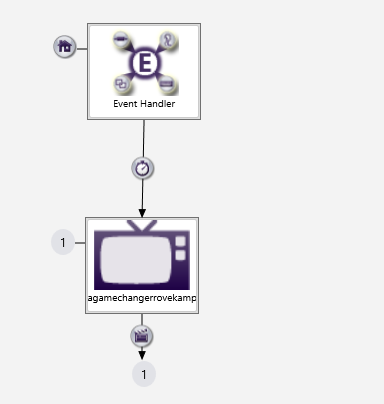
    Then you will see this:

    Make sure the Media Library on the left side is set to that folder, and it shows your videos.

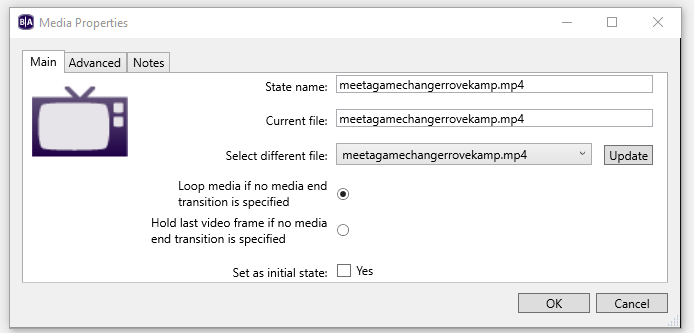
    Then double click on the TV, then you will see this:

    Then were it says "Select different file" select your screen 1 video from the list, and click the "Update" button next to it. Then click the "OK" at the bottom.

    Then do a File>Save Screen 1 Master from the top menu.

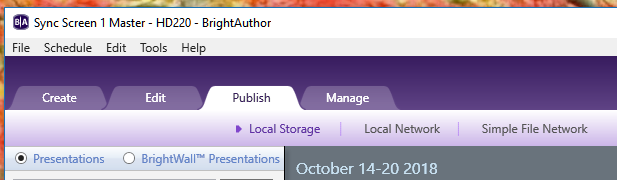
    Then go to the Publish Tab.

    Make sure you are in Local Storage mode.

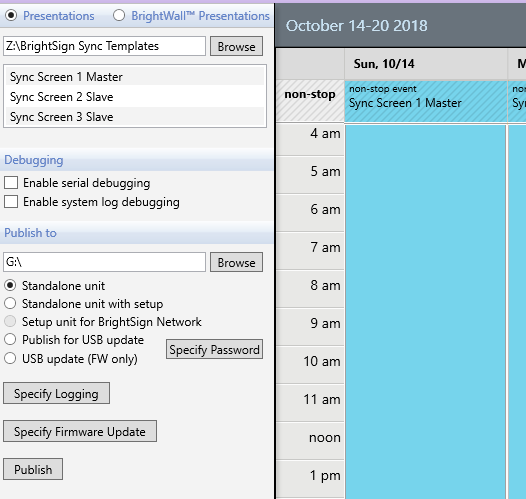
    Then on the left side, select "Standalone unit" and browse to the SD card location (make sure all other files have been deleted from SD card first). The Calendar should automatically populate with Sync Screen 1 Master.

    Then click Publish.

    It will write all the files needed to the SD card for the 1st player.


    Repeat the above with Sync Screen 2 Slave with your 2nd screen video and SD card, and again with Sync Screen 3 Slave and your 3rd SD card.

    Put the cards in their corresponding players and power them up. They may have to reboot a few times for configuration, this is normal, and if they do this will only happen the first time they are loading new configuration/content. After that with the same content they will only boot the 1 time.

    Soon they should all be playing synchronized (all 3 connected via Ethernet cables to the same network switch)

    There is a slim chance you may also need to update firmware on the players. If you have any issues, publish the content to the SD card again, except first click on the "Specify Firmware Update" button, and find the corresponding model player and check the "Production Release" version for that player model only, click ok, and then click Publish (to the blank SD card). This will then put the firmware on the SD card as well, the player will boot, load the new firmware, and then run the presentation.

    Good luck! Hopefully this will make sense and get you all squared away.

    John


Please sign in to leave a comment.