0

Brightsign Author - Distinct Scheduling

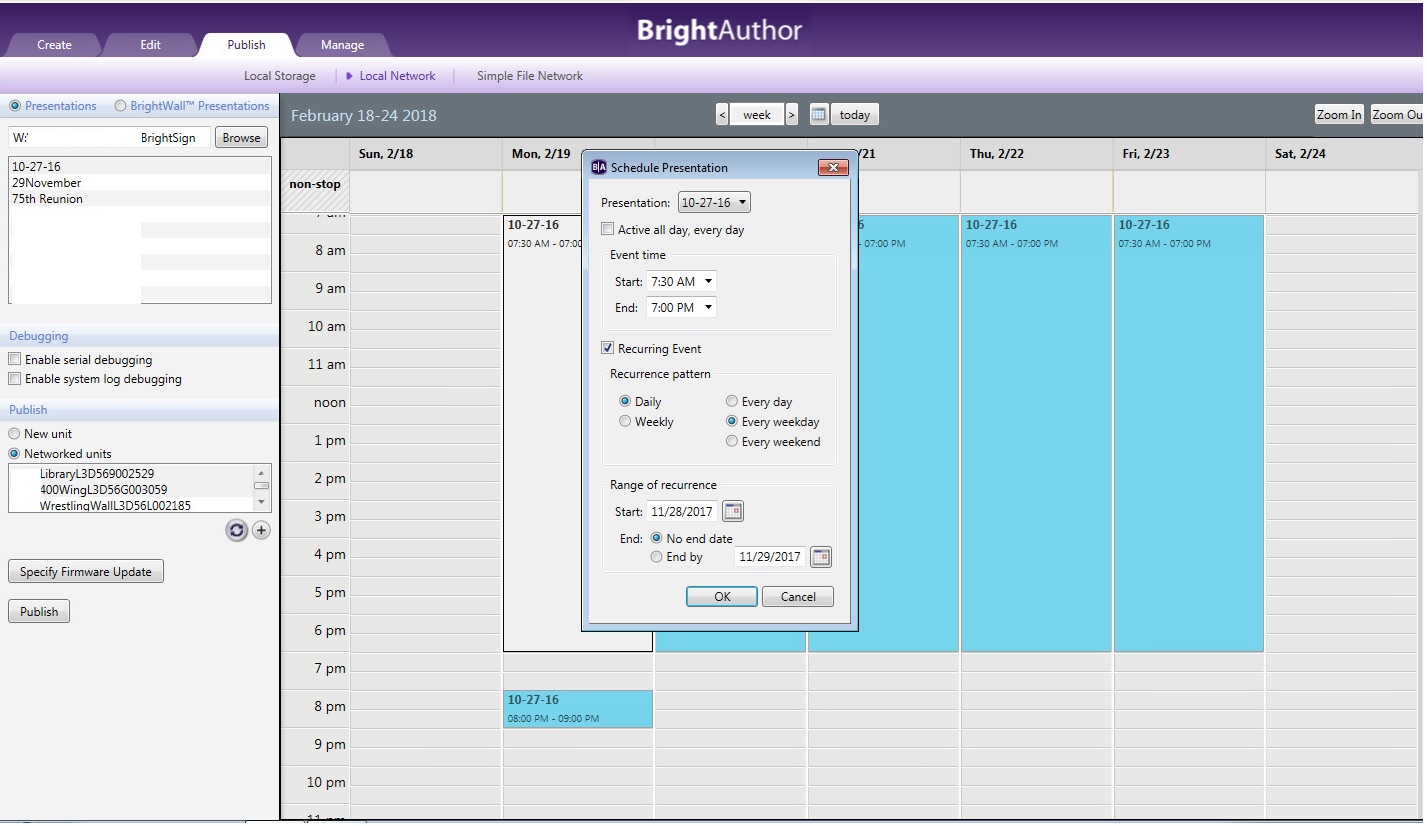
I am using BrightSign Author with a local network setup. I have 5 players. I want to schedule presentation A on unit 1, presentation B on units 2,3,4, and presentation C on unit 5.


I seem to be missing the step where to specify the unit to play the presentation when scheduling. I can only schedule the presentation(s) to play on all the units.


Thanks!

5 comments

  • 0
    Avatar
    Bright Scripters

    In the publish tab, schedule one of the presentation, then select the units that you want the presentation to play on, and click Publish.

    You can select a subset of the 5 players, with Control+Click on units.

  • 0
    Avatar
    Brightsign User

    I tried this (as I would expect the application to function this way), but the scheduler does not show what unit the presentation is assigned to (and the presentations is again published to all the players).

  • 0
    Avatar
    Bright Scripters

    That is by design, and can be confusing at first.

    The schedule shows how presentations are scheduled, regardless of the players you might publish the schedule to.

    Once you have scheduled a presentation, publish to a unit, or a set of units, then create the next schedule, and so on.

    You can save schedules to files, from the Schedule menu.


    So to recap:

    You publish a schedule to a unit or a set of units.

    A schedule, contains presentations and their time to show

    (In your case there would be only a single presentation per schedule)


  • 0
    Avatar
    Brightsign User

    Thanks for the quick response. So to flip the question around, how do I check to see what is scheduled to play on a specific player at some time in the future? (If I close and re-open the app, how do I know what was published?)


  • 0
    Avatar
    Bright Scripters

    That is an excellent question.

    You can use BrightAuthor's Manage tab, to see which presentation is active on which unit (player).

    There is another question to be asked...


Please sign in to leave a comment.